
How to Fix Cold Email Deliverability: An Engineering Guide
Ramesh Kumar
Founder & Email Deliverability Expert

Table of Contents
- 1. Start With DNS and Email Authentication
- Check the SPF Record (RFC 7208)
- Check the DKIM Record (RFC 6376)
- Check the DMARC Record (RFC 9989)
- Check Reverse DNS and Forward DNS Correspondence
- 2. Inspect SMTP Responses and Error Codes
- Documented Google SMTP Error Examples
- Illustrative Example: Investigating a Gmail Deferral
- 3. Inspect the Email Headers
- Evaluating the Authentication-Results Header
- 4. Check IP and Domain Reputation
- 5. Investigate Sending Patterns and Recipient Quality
- 6. Follow a Repeatable Troubleshooting Workflow
- Final Thoughts
- Technical References
Your cold email campaign was performing reliably last week. Now reply rates have dropped, some messages are being deferred, and test emails appear to be landing directly in spam folders.
The common instinct is often to change the sending IP, rewrite email copy, or abruptly throttle sending volume. However, changing settings without identifying the underlying root cause removes your diagnostic baseline and makes troubleshooting significantly harder.
A better engineering approach is to investigate email deliverability layer by layer: DNS and authentication records, SMTP responses and error codes, raw message headers, sender reputation telemetry, and sending behavior.
In our foundational guide, Why Cold Emails Go to Spam, we explained the core signals that influence inbox placement. This engineering guide focuses on how to systematically investigate those signals and resolve deliverability problems when something goes wrong.
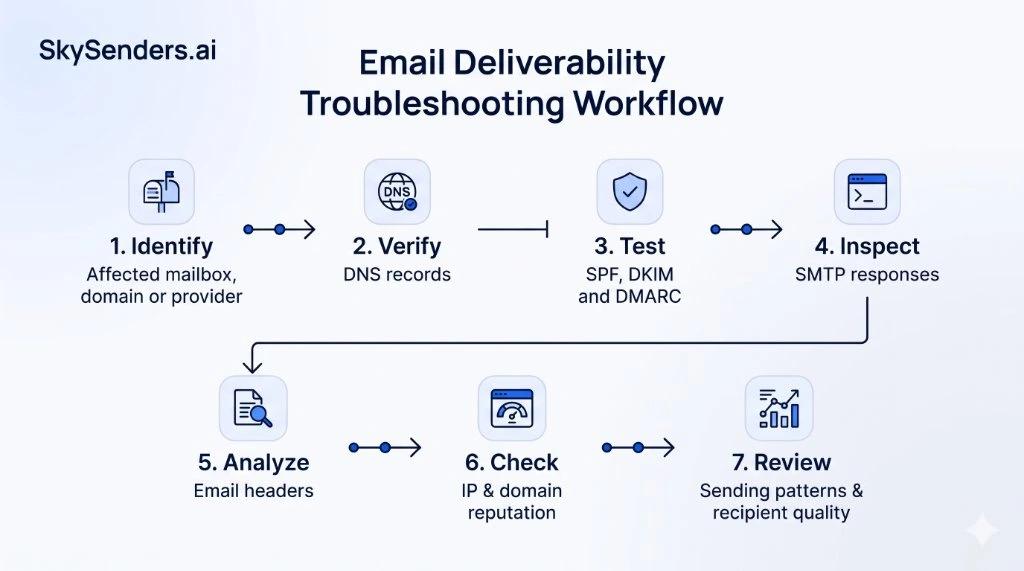
Figure 1: The seven-step engineering troubleshooting protocol for cold email deliverability.
1. Start With DNS and Email Authentication
Before investigating reputation or message content, verify that the sending domain is configured correctly in DNS. At a minimum, check SPF, DKIM, and DMARC, as well as the sending server reverse DNS configuration.
You can use dig from a terminal to query records directly.
Check the SPF Record (RFC 7208)
Query your root sending domain (replace example.com with your actual domain):
dig TXT example.com +short
Look for the SPF record beginning with v=spf1. Confirm that your sending infrastructure is explicitly authorized. Make sure there is only one SPF policy record for the domain (multiple TXT records starting with v=spf1 violate RFC 7208 section 3.2 and trigger a PermError). Also confirm that SPF evaluation does not exceed the limit of 10 DNS-query-causing terms, including mechanisms such as include, a, mx and exists. Nested includes can also contribute to the limit.
Check the DKIM Record (RFC 6376)
DKIM records are published under selector._domainkey.example.com. Replace selector with the actual DKIM selector used by your mail server (retrieved from the s= tag in your outgoing mail headers):
dig TXT selector._domainkey.example.com +short
Confirm that the record exists and that the public key matches the selector configured by the sending system. Use a strong DKIM key, preferably 2048-bit RSA where supported.
Check the DMARC Record (RFC 9989)
Query the _dmarc subdomain of your root sending domain under RFC 9989 (the current DMARC specification, which updates the earlier RFC 7489 standard):
dig TXT _dmarc.example.com +short
Look for a record beginning with v=DMARC1;. Verify that your enforcement policy (p=none, p=quarantine, or p=reject) is published and that SPF or DKIM passes with alignment to the visible From: domain.
Check Reverse DNS and Forward DNS Correspondence
Mailbox providers evaluate the network identity of sending servers using reverse DNS (PTR) records and forward DNS lookup. For example, Google explicitly requires all sending hosts delivering to Gmail to have valid PTR records and verifies that the hostname in the PTR record resolves back to the sending IP address. While requirements and enforcement strictness vary across different mailbox providers, maintaining forward-confirmed reverse DNS (FCrDNS) is standard engineering practice for outbound mail servers.
First, query the PTR record of your sending IP (using the documentation IP 203.0.113.10 as an illustrative example):
dig -x 203.0.113.10 +short
The returned hostname should be your intended mail server hostname (for example, mail.example.com.). Next, verify that this hostname resolves back to the original IP address:
dig A mail.example.com +short
If the forward lookup does not match the sending IP address, providers that enforce PTR correspondence may defer or reject connection attempts.
Remember: A successful DNS lookup only confirms that a record exists. It does not prove that the receiving mail exchange evaluated your message as passing authentication. Inspect the actual authentication results on a received test message as well.
2. Inspect SMTP Responses and Error Codes
SMTP responses are among the most valuable pieces of diagnostic evidence when troubleshooting delivery failures. When a sending server attempts to deliver an email, the receiving server returns a response code indicating whether it accepted the message, deferred it, or rejected it.
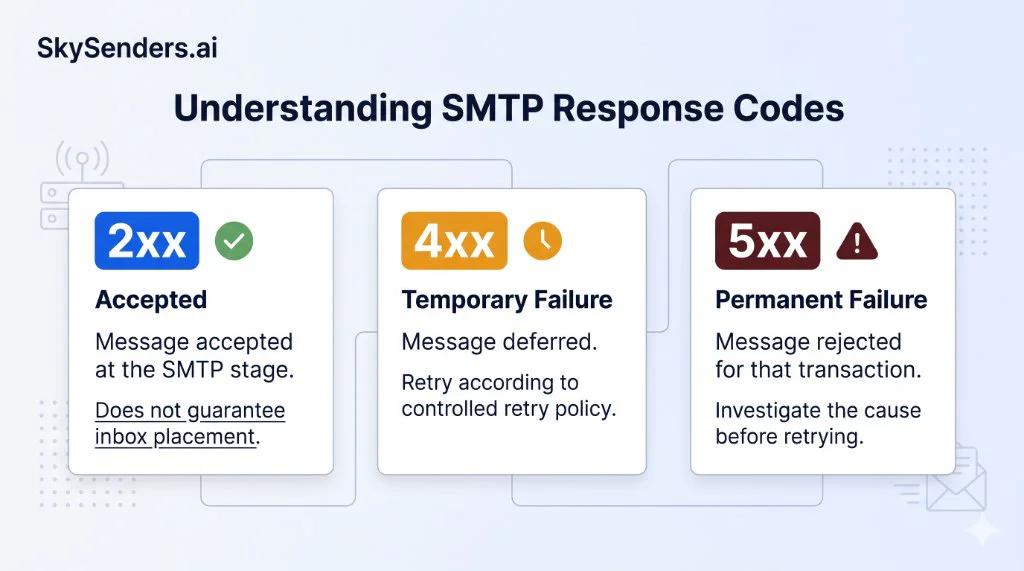
Figure 2: Interpreting 2xx transport acceptance, 4xx temporary deferrals, and 5xx permanent rejections.
The fundamental distinction is between temporary deferrals and permanent rejections:
- 2xx Positive Completion (e.g., 250 OK): The receiving server accepted custody of the message for delivery. SMTP acceptance does not confirm inbox placement, as subsequent anti-spam filtering still takes place.
- 4xx Temporary Failure (Deferrals): The receiving server encountered a transient condition such as rate-limiting, temporary traffic throttling, or server maintenance. The sending MTA typically retains the deferred message in its queue and retries delivery periodically according to its configured retry schedule (such as exponential backoff over a configured time-to-live window).
- 5xx Permanent Failure (Rejections): The receiving server refused the message permanently due to an invalid recipient, an authentication failure, an explicit block, or a policy restriction. Permanent 5xx failures should not be blindly retried without investigating and correcting the underlying problem, as repeatedly attempting delivery to rejected addresses damages sender reputation.
Documented Google SMTP Error Examples
Mailbox providers publish specific error strings accompanying enhanced status codes. Here are actual documented examples from Google official SMTP error documentation (support.google.com/mail/answer/3726730):
Google 421 4.7.26 (Temporary Authentication Deferral):
421 4.7.26 This message does not pass authentication checks (DMARC policy, SPF, or DKIM). To best protect our users from spam, the message has been temporarily deferred. Please visit https://support.google.com/mail/answer/81126 for more information.
Explanation: Google temporarily defers the message because the domain failed authentication checks under its sender guidelines. The sending MTA holds the message in queue and retries according to its retry schedule while operators verify SPF records, DKIM signatures, and DMARC alignment.
Google 550 5.7.25 (Missing or Mismatched Reverse DNS):
550 5.7.25 The sending IP does not match the IP address of the hostname, or the IP does not have a PTR record setup. Please visit https://support.google.com/mail/answer/81126 for more information.
Explanation: Google permanently rejected the message because the sending host IP lacks a valid reverse DNS (PTR) record or fails forward DNS validation. This is an infrastructure misconfiguration that must be corrected at the DNS or ISP level before sending can resume.
Google 550 5.7.26 (Unauthenticated Sender or Failed Checks):
550 5.7.26 This message does not have authentication information or fails to pass authentication checks. To best protect our users from spam, the message has been blocked. Please visit https://support.google.com/mail/answer/81126 for more information.
Explanation: This response is not exclusive to DMARC. It can indicate missing authentication headers, SPF validation failures, broken DKIM signatures, or unaligned sender domains. Senders must inspect the complete SMTP response text and analyze received test headers to determine which check failed.
Google 550 5.7.28 (Unusual Rate of Unsolicited Mail):
550 5.7.28 There is an unusual rate of unsolicited mail originating from your IP address. To protect our users from spam, mail sent from your IP address has been blocked. Please visit https://support.google.com/mail/answer/81126 for more information.
Explanation: Google blocked messages from this IP address due to an unusually high volume of unsolicited email or elevated spam complaint feedback. Retrying delivery while this block is active will not succeed; senders must halt unsegmented blasts, review recipient acquisition, and review Postmaster Tools telemetry.
Google 550 5.7.30 (DMARC Policy Enforcement):
550 5.7.30 This message does not pass authentication checks (DMARC policy). Please visit https://support.google.com/mail/answer/81126 for more information.
Explanation: The message failed DMARC authentication policy checks, meaning neither SPF nor DKIM passed with domain alignment against the visible RFC 5322 From: header, and the domain published policy instructed the receiver to reject unaligned mail.
Google 550 5.1.1 (Unknown Recipient / Hard Bounce):
550 5.1.1 The email account that you tried to reach does not exist. Please try double-checking the recipient address for typos.
Explanation: The recipient mailbox does not exist. This is a permanent failure; suppress the address immediately in your database. Avoid repeatedly retrying permanent failures without correcting the underlying issue.
Illustrative Example: Investigating a Gmail Deferral
Here is an illustrative example showing how to investigate a provider-specific deferral without rebuilding your sending infrastructure:
Scenario: A team notices that outbound emails to Microsoft 365 and Yahoo recipients are delivering smoothly, but dispatches to @gmail.com addresses are returning temporary 421 4.7.26 responses in MTA logs.
Instead of switching sending IPs or changing domain names, the engineering team executes a targeted investigation:
- 1. Isolate Scope: Comparing MTA logs reveals that deferrals are restricted exclusively to Google MX destinations, pointing to a policy or authentication check specific to Google requirements.
- 2. Interpret the Response: The 421 4.7.26 code specifically identifies an authentication failure under DMARC, SPF, or DKIM.
- 3. Inspect Test Headers: The team sends a single test email to a controlled Gmail account and selects "Show original". The Authentication-Results header reveals spf=pass but dkim=fail (body hash did not verify).
- 4. Root Cause and Correction: Investigation shows that a newly added click-tracking proxy was modifying whitespace in the email body after the MTA applied the DKIM signature. The proxy is reconfigured to wrap links prior to cryptographic signing.
- 5. Verification: A follow-up test email confirms dkim=pass and dmarc=pass. The sending MTA automatically retries the deferred messages according to its queue schedule, and deliveries resume normally without burning an IP address or domain.
3. Inspect the Email Headers
If the receiving server accepts your message but the recipient reports that it is going to spam, inspect the full headers of a test email received at the destination.
A note on open rates: Do not present open rates as a reliable measure of inbox placement. Features such as Apple Mail Privacy Protection (MPP) automatically pre-fetch tracking pixels through proxy servers, triggering false open signals. Meanwhile, corporate security gateways often block tracking pixels entirely. Inspecting raw message headers on controlled test mailboxes provides objective technical data.
In Gmail, open a received message and select "Show original" to inspect full headers. In Outlook, select "View message details".
Evaluating the Authentication-Results Header
Look for the Authentication-Results header added by the receiving provider. An illustrative example looks like this:
Authentication-Results: mx.google.com; dkim=pass header.i=@example.com header.s=s1; spf=pass (google.com: domain of bounces@mail.example.com designates 203.0.113.10 as permitted sender) smtp.mailfrom=bounces@mail.example.com; dmarc=pass (p=REJECT sp=REJECT dis=NONE) header.from=example.com
Check the following signals:
- SPF: Did the receiving provider report a pass? Which envelope-sender domain was used in Return-Path?
- DKIM: Did the digital signature validate successfully? Did an intermediary mail gateway alter whitespace or inject a footer that caused body hash (bh=) failure?
- DMARC: Did authentication pass with the required domain alignment between the visible From: header and the authenticated SPF or DKIM domains under RFC 9989?
- Message-ID Syntax: Inspect the Message-ID header to verify that your mail server or application is generating syntactically valid and consistent identifiers conforming to standard mail formats (RFC 5322). Inconsistent or malformed Message-ID headers can be flagged by automated content filters.
- Received Chain: Which servers handled the message along the transmission route, and did any intermediary relay alter message headers or encoding?
Use the authentication results added by a trusted receiving provider. Do not rely on headers supplied by an unverified intermediate sender. If SPF, DKIM, and DMARC pass but inbox placement is still poor, move on to reputation and sending behavior. Authentication is necessary, but it does not guarantee inbox placement.
4. Check IP and Domain Reputation
Once DNS and authentication records look correct, investigate the reputation of the sending environment.
For Gmail recipients, use Google Postmaster Tools to monitor available telemetry such as domain and IP reputation, user-reported spam rate, authentication pass rates, and delivery error codes. Keep in mind that Postmaster Tools data can be limited or unavailable when sending volumes are low. A missing dashboard does not automatically mean that the domain has a reputation problem.
For Microsoft consumer email services (Outlook.com, Hotmail), investigate Microsoft SNDS where applicable. It provides IP-level data that can help identify complaint spikes and filter status (normal, yellow, or red status).
Also check authoritative blocklists (such as Spamhaus and Barracuda) when there is evidence of an IP reputation issue. A blocklist listing is a diagnostic signal; however, an absence of public blocklist listings does not prove that every provider will route your messages to the inbox.
Do not change IP addresses simply because inbox placement has declined. First identify whether the issue is associated with the IP, domain, authentication, recipient list, or sending behavior.
5. Investigate Sending Patterns and Recipient Quality
If the technical configuration is correct, examine what operational parameters changed before deliverability declined. Compare recent sending activity with periods when delivery was healthy.
Audit these key dimensions:
- Volume Acceleration: Look for sudden increases in daily sending volume or large changes in the number of active mailboxes.
- Bounce Rates: Monitor bounce rates over time and investigate sudden increases rather than relying on a universal threshold. Repeated sends to invalid or unresponsive recipients signal poor list hygiene.
- Spam Complaint Feedback: Google recommends keeping reported spam rates below 0.10% and avoiding rates of 0.30% or higher. High complaint rates negatively affect message classification.
- Tracking Domains and Links: Where link tracking is necessary, consider using a dedicated custom tracking domain with properly configured DNS. Avoid generic URL shorteners and eliminate unnecessary redirects.
Break the data down by mailbox, sending domain, IP address, and recipient provider. For example, if Gmail recipients are experiencing a problem but Microsoft recipients are not, investigate Gmail-specific responses before altering the entire infrastructure. The objective is to isolate the problem rather than apply the same change to every mailbox.
6. Follow a Repeatable Troubleshooting Workflow
When investigating a deliverability issue, execute this repeatable technical sequence:
- Identify the affected scope: Is the problem limited to one mailbox, domain, IP, or recipient provider?
- Verify DNS records: Check SPF lookup counts, single record rules, DKIM selectors, DMARC alignment, MX records, and forward-confirmed reverse DNS (PTR).
- Test authentication on received messages: Send a controlled test message and inspect the receiving provider Authentication-Results header.
- Inspect SMTP logs: Group responses by provider and enhanced status code. Separate temporary deferrals (4xx) from permanent rejections (5xx).
- Check reputation telemetry: Review available Google Postmaster Tools data, Microsoft SNDS reports, and reputable blocklists.
- Review sending behavior: Compare dispatch volume, bounce rates, spam complaints, and recipient quality with earlier healthy periods.
- Change one variable at a time: Make a targeted correction and monitor the outcome over an appropriate observation period based on sending volume, provider feedback, and reputation telemetry before modifying additional settings. Keep a record of changes to distinguish correlation from actual causes.
Final Thoughts
Email deliverability problems rarely have one universal fix. A DNS misconfiguration requires a different response from a reputation downgrade. A temporary SMTP deferral requires a different handling strategy from a permanent rejection. And a message accepted by the receiving server still needs to be evaluated for final inbox placement.
For founders and outbound operators, deliverability monitoring should be part of the infrastructure itself, not an emergency activity started only after a campaign stops performing.
At SkySenders, we believe businesses should have greater control and visibility over their email infrastructure. Dedicated email infrastructure platforms like SkySenders Private SMTP provide isolated email infrastructure per domain with automated DNS configuration and greater control over your outbound email environment.
Technical References
Ready to Scale Your Cold Email Outreach?
Get dedicated email infrastructure per domain, automated DNS configuration and greater control over your outbound email environment with SkySenders.
Get Started with SkySenders

